Showing posts with label eclipse. Show all posts

Saturday, October 16, 2010

Remote Debug Web Start, Tomcat and Standalone Application

Remote debug web start is not as easy as applet.  Same setting for applet doesn't work at all.  Finally, I managed to make it work with an alternative solution.  Instead of launching the web start from a web site, I downloaded the JNLP file and launched it from command line.

My environment: Windows 7 64-bit, JDK 6 Update 14, MyEclipse for Spring.
Here is what I did:
  1. No need to setup Runtime Parameters in Java Control Panel this time.
  2. I used port 8200 for remote debug.
  3. server=y must be used
  4. suspend can be y or n.  If suspend=n, then Web Start will launch right away.  But if suspend=y, Web Start will not launch until a debugger is attached to port 8200.
  5. In Eclipse/MyEclipse, Debug Configuration must use Socket Attach as Connection Type and use port 8200.

Remote debug Tomcat or other standalone application is very similar to Web Start. However, the runtime parameters have to be added to the application's start script. And in this case, suspend is better to set to n so that the application will not wait for a debugger to attach. Since this type of application is most likely deployed to a remote server, Host in Debug Configuration also needs to match the corresponding domain.

Thursday, October 14, 2010

Remote Debug an Applet

Remote debug is relatively new to me.  But after a few days of trying, I finally got a hand of it.  Remote debug applet is the easiest and first in success during my experiment.

My environment: Windows 7 64-bit, IE8, JRE 6 Update 21, MyEclipse for Spring.
  1. Go to Start --> Control Panel --> Java (32 bit), this will open the Java Control Panel.
  2. Go to Java Tab and click on View...
  3. Add "-Xdebug -Xrunjdwp:transport=dt_socket,address=9000,suspend=y" to the Runtime Parameters
  4. In Eclipse/MyEclipse, click Debug --> Debug Configurations ... from toolbar.
  5. Add a new configuration under Remote Java Application.  Make sure you use Socket Listen as Connection Type.  Also match the port, which is 9000 in my case.
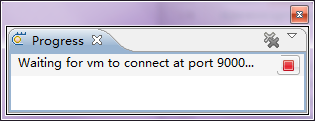
  6. Now start the Debug Configuration just added, Applet in my case. You'll see in Progress panel that port 9000 is being listened.
  7. Add break point in code and launch the applet.